

A Step-by-Step Guide
In this article, we’ll guide you through the process of creating user profiles in Sage Pastel Partner. Creating user profiles and controlling system rights in Sage Pastel Partner is essential for maintaining security, enhancing operational efficiency, ensuring compliance, preventing fraud, and providing a tailored user experience. These controls help protect the organization’s financial data and support a structured, accountable, and efficient working environment.
How to Create User Profiles in Sage Pastel Partner
Step 1: Access the User Setup
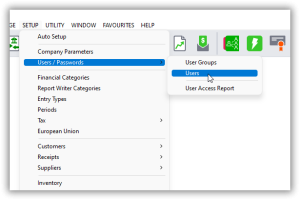
- Open Sage Pastel Partner.
- Navigate to the Setup menu.
- Select Users/Passwords.
- Click on Users.
Step 2: Enter Admin Password
- A prompt will appear asking for the admin password. Enter the admin password and click OK.

Step 3: User Setup Window
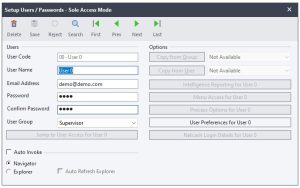
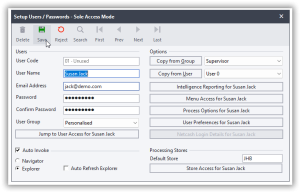
- You will now be in the Users Setup window.
- Ensure this is the only window open by closing other windows if necessary.
- The options available are Delete, Save, Reject, Search, and navigation buttons.
Step 4: Create a New User(Lets say a Cashbook Clerk)
- Click on Next to create a new user.
- The User Code will be automatically generated by the system.
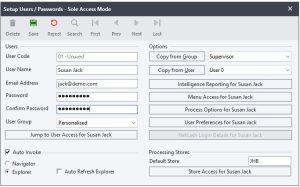
- Fill in the following fields:
- Username: Enter the user’s name (e.g., Susan Jack).
- Email Address: Enter the user’s email address (e.g., jack@demo.com).
- Password: Set a password for the user and confirm it.
- User Group: Select Personalized.
Step 5: Set User Permissions
- Click on Menu Access to assign permissions.
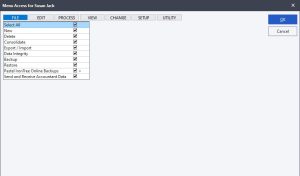
- A window replicating the main menu will appear. Here, you can set specific rights for the user.
Step 6: Assign Rights by Menu
- File Menu: Uncheck all options as these are typically administrative functions.
- Edit Menu: Uncheck all options.
- Process Menu:
- Uncheck all initially.
- Check only the necessary tasks (e.g., Cash Book and Bank Reconciliation).
- View Menu:
- Uncheck all initially.
- Check relevant reports for the user’s role (e.g., Cash Movement Report under Financial Reports and Cashbook Details under Transactions).
- Change Menu: Uncheck all options.
- Setup Menu: Uncheck all options.
- Utility Menu:
- Uncheck all initially.
- Check relevant tools (e.g., Note Facility, Price Search, and Calculator).
Step 7: Save the User Profile
- Once all permissions are set, click OK.
- In the Users Setup window, click Save to save the new user profile.
Step 8: Log In as the New User
- Close the Users Setup window.
- Go to the File menu and click Open.
- Select your company file and click Open.
- Enter the new user’s password.
- Set up a security question and answer, then click OK.
Step 9: Verify User Permissions
- Log in as the new user (e.g., Susan Jack).
- Check the permissions:
- Under File, the user should only have access to Open, Set Printer, and Exit.
- Under Edit, there should be no options available.
- Under Process, ensure only Cash Book and Bank Reconciliation are available.
- Under View, verify access to Cash Movement and Cashbook Details reports.
- Under Change and Setup, there should be no options available.
- Under Utility, the user should only have access to Note Facility, Price Search, and Calculator.
Creating user profiles and controlling system rights in an accounting system like Sage Pastel Partner is crucial for several reasons:
1. Security and Data Integrity
- Prevent Unauthorized Access: By creating user profiles and assigning specific permissions, you can ensure that only authorized personnel have access to sensitive financial data. This minimizes the risk of unauthorized access and potential data breaches.
- Data Protection: Limiting access to certain functionalities helps protect the integrity of your accounting data, ensuring that only qualified personnel can modify critical financial records.
2. Accountability and Audit Trail
- Traceability: User profiles enable tracking of actions performed by different users within the system. This is essential for creating an audit trail that can be used to investigate discrepancies or errors.
- Responsibility: Assigning specific roles to users ensures that each person is accountable for their actions. This clarity helps in identifying who made changes or entries, thereby facilitating accountability.
3. Operational Efficiency
- Role-Based Access: By granting access based on job roles, employees can quickly access the information and tools they need to perform their tasks efficiently without being overwhelmed by unnecessary functionalities.
- Reduce Errors: Restricting access to certain functions reduces the likelihood of accidental errors by users who are not trained or authorized to perform specific tasks.
4. Compliance with Regulations
- Regulatory Requirements: Many industries have strict regulatory requirements regarding financial data access and management. Implementing user profiles and access controls helps ensure compliance with these regulations, such as GDPR, SOX, or HIPAA.
- Audit Readiness: Controlled access and detailed audit trails prepare your organization for external audits, demonstrating that you have robust controls in place to protect financial data.
5. Minimizing Internal Fraud
- Segregation of Duties: Implementing user profiles allows for the segregation of duties, where different users are responsible for different parts of a process. This reduces the risk of internal fraud by ensuring that no single individual has control over all aspects of a financial transaction.
- Detecting Suspicious Activities: With controlled access and monitoring, it is easier to detect and investigate suspicious activities, such as unauthorized data manipulation or unusual transactions.
6. Customizable User Experience
- Tailored Access: Customizing the user experience by providing access to only relevant features and data enhances usability. Users can focus on their specific tasks without navigating through irrelevant options.
- Training and Support: With user profiles tailored to specific roles, training can be more focused and effective, ensuring users are well-versed in the functionalities they need to use.
7. Improving System Performance
- Resource Management: Limiting access to high-resource functions to only those who need them can help in managing system resources more efficiently, leading to better overall system performance.
Conclusion
In summary, creating user profiles and controlling system rights in Sage Pastel Partner is essential for maintaining security, enhancing operational efficiency, ensuring compliance, preventing fraud, and providing a tailored user experience. These controls help protect the organization’s financial data and support a structured, accountable, and efficient working environment.