

In this guide, we will walk you through the steps to process a stock take in Sage Pastel Accounting. A stock take is essential to ensure that the theoretical quantities in Sage Pastel Accounting match the physical quantities you have on hand.
Pre-Stock Take Checklist
- Check Open Batches: Verify all open batches that affect inventory quantities, such as customer and supplier documents and inventory journals, to ensure that these unupdated documents and journals have not impacted your physical quantities on hand.
- Backup Data: Ensure you have a valid backup of your company data set, as a stock take cannot be reversed without a backup.
Step-by-Step Stock Take Process
- Initiate the Stock Take
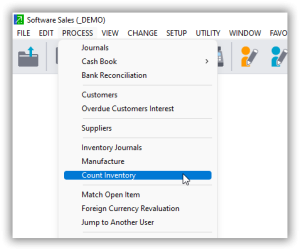
- Navigate to Process > Count Inventory.
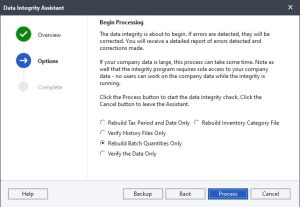
- A message will prompt you to rebuild the batch quantities. Click Yes.

Rebuild Batch Quantities
- The Data Integrity Assistance screen will appear with the option to rebuild batch quantities selected.
- Click Process. Once complete, click finish.
Snapshot of Inventory Quantities
- The Count Inventory Assistance screen will display, advising you to take a snapshot of your inventory quantities.
- Click Next to proceed.

- Select Range of Items
- Choose the range of items to include in the snapshot:
- Multi-stores: If applicable, select the store range.
- Arrange by: Inventory code, inventory category, bin number, or barcode.
- For inventory code, bin number, or barcode, use the magnifying glass to select the range.
- For inventory category, select the range from the drop-down lists.
- To select all items, leave the From field blank and fill the To field with
Zs.
- Choose the range of items to include in the snapshot:
- Include Item Types
- Choose to include all item types, serialized items only, or non-serialized items only. Select all item types if you do not use the Serial Number Tracker add-on module.
- Click Next.

Operation Confirmation
- Review your selections on the Operation Confirmation screen.
- Click Back to change your selection, Cancel to exit, or Process to continue.

Process Snapshot
- Confirm the message that items have been processed in the snapshot.
- Click No to proceed to the next step.

Entering Physical Quantities
- Print or Create Count Sheets
- You can print the count sheet from Sage Pastel Accounting or create your own.

- You can print the count sheet from Sage Pastel Accounting or create your own.
- Enter or Edit Quantities
- Enter or edit the physical quantities on hand.
- You can also import a text or CSV file containing the physical quantities (refer to the document “Importing Inventory Quantities” for the necessary layout).
- Choose to show items in the snapshot only or show all inventory items.
- Click Next.

- Count Inventory Assistant
- Enter the physical quantities for each item.
- If using the Serial Number Tracker add-on module, ensure to match the serial numbers with the quantities.
- Click Next to proceed to the printer variance report.

Printing and Reviewing Variance Report
- Printer Variance Report
- Review the variance between theoretical and physical quantities.
- Set filters for printing options, sorting inventory, and displaying various item details.
- Click OK to view the report.

- Review Report
- Ensure the physically counted quantities and variance are correct.
- If discrepancies exist, clear the snapshot without updating inventory quantities and redo the count inventory process.
Finalizing Stock Take
- Update Differences
- Update any differences between theoretical and physical quantities.
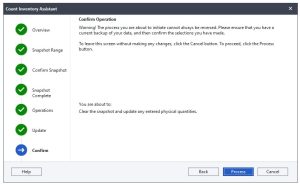
- Clear the snapshot.

Select Period and Date
- Select the period and date for processing the stock take.
- Ensure the date falls within the correct period and click Next.

Summary of Actions
- Review the summary and click Process to finalize.
- Click Finish on the operation complete screen.
Verify Update
- Go to View > Inventory Quantities.
- Apply the appropriate filters to ensure the quantities have updated correctly.
Why is it Important to Take Regular Stock Counts